Leave Your Message
A second screen can change the feel of a workday. It can also become one more thing to carry. This guide to the 10 Best Portable Computer Monitors to Buy in 2026 looks beyond glossy product photos and headline resolution claims. It considers the details that matter at a desk, on a train, or beside a laptop in a small hotel room.
The guiding line, paraphrased from display analyst Raymond Soneira’s measurement-focused work, is: “Trust measured performance, not a spec-sheet promise.” This is an editorial paraphrase, not a verbatim quotation. That distinction matters. Brightness, color accuracy, viewing angles, panel finish, and connection options can vary in real use. A screen that looks crisp in a dark room may feel dim beside a sunny window. USB-C may carry video and power through one cable, but not every laptop supports that setup.
The models ahead are compared for image quality, portability, stand stability, compatibility, and value. We also consider whether touch input, built-in speakers, or high refresh rates justify their added cost. Small details count: a wobbly kickstand, a stiff cable, or a protective cover that slips can sour an otherwise capable display. And some trade-offs remain hard to judge from specifications alone. No single Portable Computer Monitor suits every traveler or desk. Use these picks as a practical shortlist, then check your device’s ports and your own viewing needs before buying.
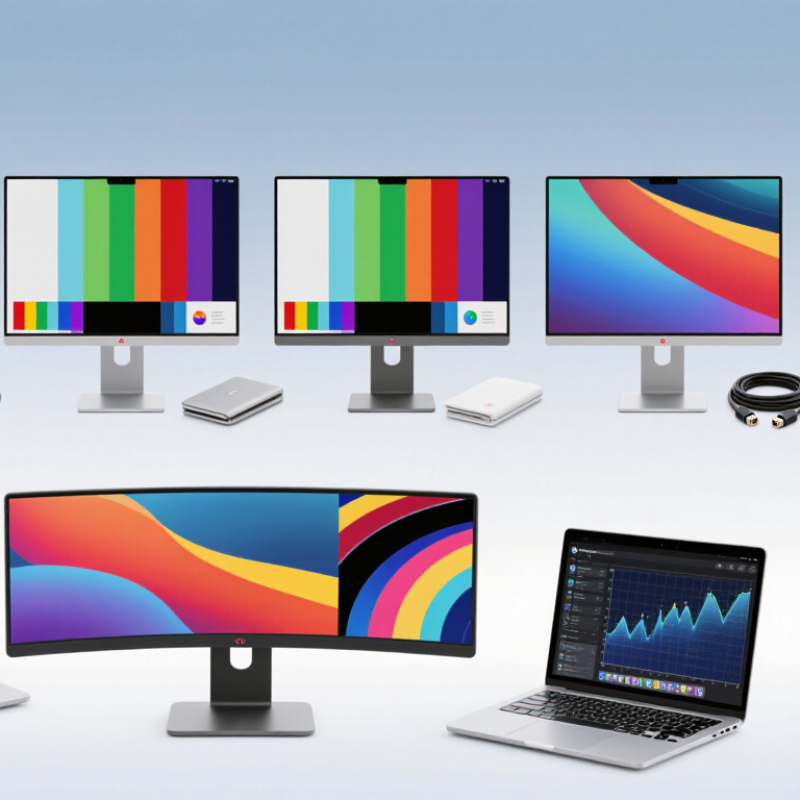
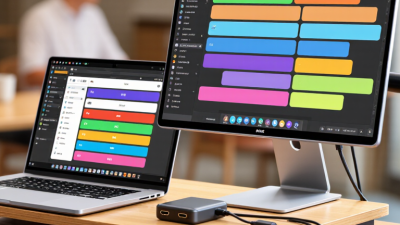
A portable monitor is a lightweight display designed to travel with a laptop, tablet, or compatible phone. It usually connects through USB-C or HDMI, though some models need a separate power cable. The idea is simple: add screen space without carrying a full desktop setup. Useful on a small desk, too.
People use these displays for spreadsheets, video calls, photo review, presentations, and travel work. A second screen can keep reference notes visible while a document stays open on the main display. For gaming or media, refresh rate and built-in speakers may matter, but they are not priorities for everyone. That varies.
Selection starts with size and weight. A 14- to 16-inch screen often fits beside a laptop, while larger panels can feel awkward on a train tray. Check resolution against screen size, and look for readable text rather than chasing the highest number. Brightness matters near windows; glossy screens can reflect overhead lights. Not always obvious.
Also verify port compatibility, power draw, stand stability, and the included cables. USB-C does not guarantee every connection will carry both video and power, so check your device’s specifications. Touch input, a built-in battery, and a protective cover can be helpful, but they add cost or weight. One easy mistake is choosing by specifications alone: a wobbly stand becomes irritating by the second meeting.
Portable monitors are compact, lightweight displays designed to connect to a computer, phone, or game console. The entries below compare common monitor configurations rather than specific branded products; listed weights and power needs are approximate and vary by design.
| Rank | Portable Monitor Configuration | Typical Display Specifications | Common Connections | Approx. Weight | Best For | Key Selection Consideration |
|---|---|---|---|---|---|---|
| 1 | 15.6-inch Full HD IPS | 1920 × 1080; 60 Hz; typically 250–300 nits | USB-C with DisplayPort Alt Mode; mini-HDMI | About 0.7–1.0 kg | Everyday productivity and general travel | A balanced size and resolution; check whether the computer’s USB-C port supports video output. |
| 2 | 16-inch 16:10 IPS | 1920 × 1200; 60 Hz; typically 250–400 nits | USB-C with DisplayPort Alt Mode; some designs include mini-HDMI | About 0.8–1.2 kg | Documents, spreadsheets, and coding | The 16:10 aspect ratio provides more vertical workspace than a 16:9 screen. |
| 3 | 16-inch high-resolution IPS | 2560 × 1600; usually 60–120 Hz | USB-C with DisplayPort Alt Mode; sometimes mini-HDMI | About 0.8–1.3 kg | Detailed design work and sharp text | Confirm that the host device can drive the resolution and refresh rate you want. |
| 4 | 15.6-inch 4K IPS | 3840 × 2160; commonly 60 Hz; typically 300–400 nits | USB-C with DisplayPort Alt Mode; mini-HDMI | About 0.8–1.2 kg | High-detail images, video, and design review | High resolution can increase power use; check scaling support and the host’s video output. |
| 5 | 13.3-inch OLED | 1920 × 1080 or 2560 × 1600; typically 60 Hz | USB-C with DisplayPort Alt Mode; some designs include mini-HDMI | About 0.5–0.8 kg | Compact travel and contrast-rich media | OLED offers deep blacks; compare brightness and follow the maker’s guidance for long-term static images. |
| 6 | 14-inch 3:2 IPS | 2160 × 1440; typically 60 Hz | USB-C with DisplayPort Alt Mode; mini-HDMI on some designs | About 0.6–0.9 kg | Reading, writing, and vertical workspace | The taller screen is useful for documents, though its shape may differ from a laptop’s display. |
| 7 | 17.3-inch Full HD IPS | 1920 × 1080; usually 60–75 Hz; typically 250–300 nits | USB-C with DisplayPort Alt Mode; mini-HDMI | About 1.0–1.5 kg | A larger second screen for a temporary workstation | Check packed dimensions and stand stability; the larger panel is less convenient for small bags. |
| 8 | 15.6-inch high-refresh IPS | 1920 × 1080; commonly 120–144 Hz | USB-C with DisplayPort Alt Mode; mini-HDMI | About 0.8–1.2 kg | Gaming and smoother on-screen motion | Both the monitor connection and source device must support the selected refresh rate. |
| 9 | 14-inch Full HD IPS with touch input | 1920 × 1080; usually 60 Hz; touch support varies | USB-C with DisplayPort Alt Mode; some designs include mini-HDMI | About 0.6–1.0 kg | Presentations, interactive demos, and compatible touch workflows | Touch input may need a separate USB data connection and operating-system support. |
| 10 | 14-inch low-power IPS | 1920 × 1080; typically 60 Hz; brightness varies by design | USB-C with DisplayPort Alt Mode; some designs include mini-HDMI | About 0.5–0.8 kg | Frequent travel and battery-conscious use | Look for measured power information; some monitors can draw power from the connected laptop. |