Leave Your Message
Choosing the right Hdmi Portable Monitor starts with how you plan to use it. A second screen for spreadsheets needs different strengths from a display for gaming or travel. Think about where it will sit: beside a laptop on a small café table, in a hotel room, or in a shared workspace. Screen size, weight, and stand stability matter more when you carry the monitor every day.
Check the connections before comparing prices. HDMI can carry video, but many portable monitors still need separate power through USB-C. Confirm the exact ports on both devices, and check whether the included cables support your setup. A sharp 1080p image may be enough for documents, while photo work can benefit from higher resolution and reliable color. For gaming, compare refresh rate and response-time specifications, but remember that your device must support them too. Look closely at brightness if you expect to work near a window. Small built-in speakers are convenient, though they may sound thin.
Specs help, but they do not tell the whole story. The spec sheet can still mislead. A glossy screen may look impressive indoors and become difficult to read under bright lights. Read detailed reviews, check warranty terms, and look for clear return options. If possible, test the monitor with your own laptop before relying on it for work. A little extra weight or one awkward cable can become annoying over time. The best choice is not always the most expensive one; it is the monitor that fits your devices, work habits, and real viewing conditions.
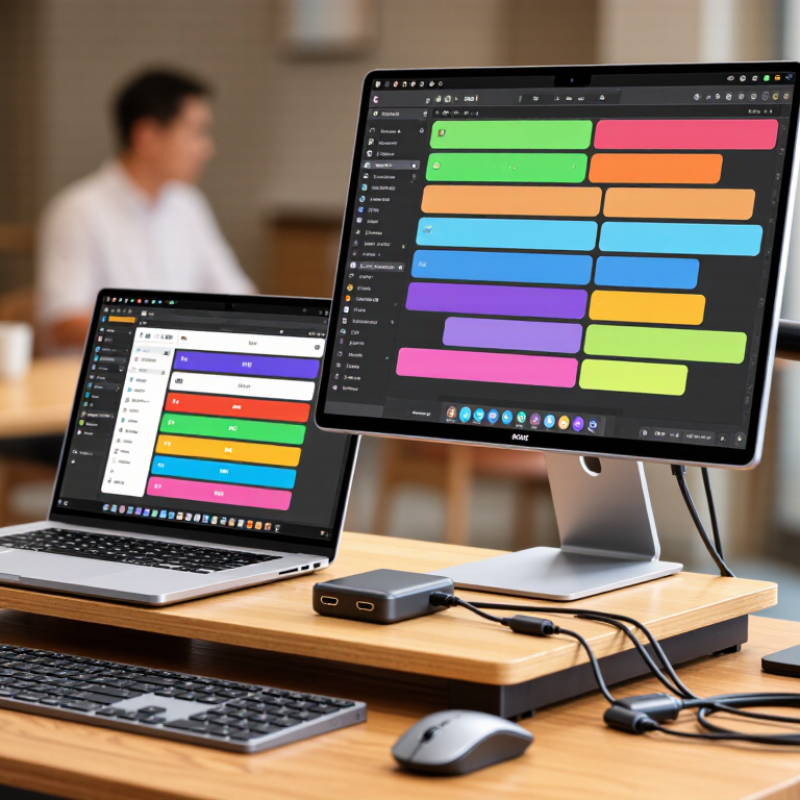
Choose a portable monitor by matching its input to your actual workload. For spreadsheets, writing, and travel, HDMI 2.0 may be enough. It offers up to 18 Gbps of bandwidth, which can support common high-resolution display modes, depending on refresh rate, color depth, and chroma format. Check the monitor’s specifications for the exact resolution and refresh rate available through HDMI. A bright café screen is useful; a port that limits your laptop to a lower refresh rate can be less so. Details matter.
HDMI 2.1 supports up to 48 Gbps, giving compatible devices more room for higher resolutions and refresh rates. That can help with fast-moving games or detailed video work, but the label alone does not guarantee a particular mode. The monitor, source device, and cable must all support the needed features. Read the fine print. Compare stated HDMI modes, not just version numbers, and consider whether your laptop can output them. In practice, a well-matched HDMI 2.0 monitor may serve everyday tasks better than a pricier 2.1 model with features you rarely use. I have found spec sheets oddly easy to misread, so double-check the small print before buying.
| Comparison Point | HDMI 2.0 | HDMI 2.1 | What to Check When Choosing a Portable Monitor |
|---|---|---|---|
| Maximum bandwidth | Up to 18 Gbps of signaling bandwidth. | Up to 48 Gbps with the highest-bandwidth FRL mode; supported modes vary by device. | Confirm the monitor’s actual input capabilities. An HDMI version label alone does not guarantee every optional feature or maximum mode. |
| Typical display use | Often suitable for Full HD at high refresh rates or 4K at up to 60 Hz, depending on color format and device support. | Can support higher-bandwidth modes, such as 4K at high refresh rates, when the source, display, and connection support them. | Match resolution and refresh rate to your work, gaming, or travel needs rather than choosing by version number alone. |
| Resolution and refresh rate | 4K at 60 Hz is a common upper-end use case; available color depth and chroma can affect supported modes. | Higher combinations, including 4K at 120 Hz, may be possible with suitable FRL support and compatible equipment. | Look for the exact resolution and refresh rate listed for the monitor’s HDMI input—not just its panel specifications. |
| Color depth and chroma | Higher resolutions, refresh rates, or color depths may require a reduced chroma format, depending on the complete signal timing. | Greater bandwidth can allow more demanding combinations, but the source and display must both support them. | For text and desktop work, check whether the desired mode supports full chroma (4:4:4); reduced chroma can affect fine text clarity. |
| HDR and variable refresh rate | Some devices support HDR or variable refresh rate features, but support depends on the implementation and device combination. | The standard includes advanced options such as Dynamic HDR and Variable Refresh Rate; individual devices may not implement every feature. | Verify explicit support for the feature you need on both the portable monitor and the connected source. |
| Compatibility | Generally a practical match for many Full HD and 4K 60 Hz setups. | Designed for higher-bandwidth features; operation falls back to mutually supported modes when connected to older equipment. | Check the source device’s output, the monitor’s input, and the cable’s rated bandwidth. The connection is limited by the least capable part. |
| Best fit | A sensible choice for everyday productivity, presentations, and many 4K 60 Hz portable-monitor setups. | Worth considering for compatible high-refresh-rate gaming or other high-bandwidth display needs. | Prioritize the monitor’s panel quality, brightness, weight, power requirements, and verified input modes alongside HDMI bandwidth. |
Note: Advertised maximum bandwidth is not a guarantee that every resolution, refresh rate, color depth, HDR mode, or variable-refresh feature will work together. Check the specifications for the exact monitor, source device, and cable.