Top 10 Portable Monitor Tips for Remote Work Success?
The rise of remote work has transformed how we approach our daily tasks. According to a recent study by Buffer, 97% of employees prefer some form of remote work. To stay productive, many professionals are discovering the advantages of using a Portable Monitor. These devices can be game-changers, amplifying workspace efficiency and allowing multitasking.
Portable Monitors enhance collaboration without needing large office spaces. A report from IDC highlights that dual-monitor setups increase productivity by 42%. This statistic reinforces the need for effective tools in remote settings. However, choosing the right Portable Monitor is essential. Not all models are created equal, and some fail to meet expectations.
During remote work, distractions are prevalent, and connectivity can be inconsistent. A Portable Monitor can mitigate these issues by providing a dedicated screen for presentations or critical tasks. While technology can facilitate better workflows, it is vital to recognize the potential challenges. Not all Portable Monitors offer reliable performance, which can lead to frustration for users. Therefore, it’s crucial to consider specific features and user reviews before making a decision.
Choosing the Right Portable Monitor for Your Needs
Choosing the right portable monitor can significantly enhance your remote work experience. Picture this: your laptop screen is small, making multitasking a challenge. A portable monitor can expand your workspace, allowing for easier navigation through tasks. Think about what you need. Is it portability or screen size? A lightweight model is great for frequent travels. However, a larger screen offers better visibility.
Consider the resolution and connection options. High resolution is essential for graphic design tasks. For basic office work, full HD may suffice. Connectivity is also vital. Make sure it has the ports needed for your devices. Reflection is necessary here. You might need to invest more for quality. Is the extra cost justified for your work style?
Battery life can't be overlooked. A monitor that drains quickly can hinder productivity. Some models rely on your laptop for power, which affects usage time. Test your options. Use different setups and configurations to determine what feels right. Your comfort affects focus. It’s essential to find a monitor that matches your workflow.
Optimizing Screen Space: Setting Up Your Portable Monitor
Setting up your portable monitor effectively can dramatically improve your remote work experience. Studies show that multitasking with multiple screens boosts productivity by up to 30%. A portable monitor allows users to optimize screen real estate, reducing the need to switch between windows frequently. This can lead to a more focused work session and less frustration.
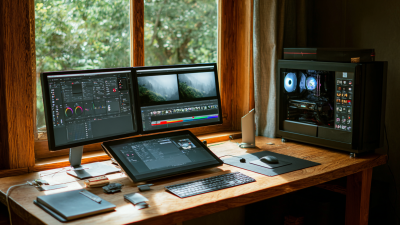
When arranging your workspace, place the portable monitor at eye level. This encourages proper posture and minimizes neck strain. It’s essential to ensure both screens are at similar height. According to ergonomic studies, this setup can significantly reduce discomfort during prolonged sessions. Position the monitors side by side if space allows, or stack them if necessary. This creates a workflow that feels seamless.
One tip is to utilize software that helps manage window layout. Applications can snap windows to specific areas of the screen and help organize tasks. Another helpful strategy is to use the portable monitor for video calls or reference materials. This keeps your main screen dedicated to primary tasks. However, be cautious not to overcrowd your workspace with too many windows. A cluttered screen can lead to confusion and decreased productivity.
Adjusting Display Settings for Better Productivity
Setting up your portable monitor requires more than just plugging it in. Adjusting the display settings significantly impacts your productivity. For instance, you can start by calibrating the brightness and contrast. A well-calibrated screen reduces eye strain during long hours of work. This simple adjustment enhances clarity and makes text easier to read.
Color settings are also crucial. Experiment with different color profiles to find what works for you. Some prefer warmer tones, while others opt for cooler hues. Remember, your comfort matters. It's worth noting that what feels right at first may not be ideal after several hours. Take breaks and reassess your settings periodically.
Don't overlook resolution settings. A higher resolution can reveal more detail, helping you multitask effectively. However, this might strain less powerful laptops. Find a balance that suits your needs. Monitor orientation can also be adjusted; rotating to portrait mode may help with reading long documents. Ultimately, your setup should reflect your working style and preferences. Remember to revisit these settings to ensure optimal comfort over time.
Top 10 Portable Monitor Tips for Remote Work Success
Maintaining Battery Life on Your Portable Monitor
Maintaining battery life on your portable monitor is crucial for remote work efficiency. Research indicates that 30% of remote workers prioritize screen quality and battery longevity. A portable monitor typically lasts around 4 to 6 hours on a full charge. However, this may vary based on usage and settings.
To enhance battery life, adjust your monitor's brightness. Studies show that reducing brightness by 50% can extend battery life by up to 30%. Disabling unnecessary features, like Wi-Fi and Bluetooth, is another effective strategy. These functions consume battery even when not in active use.
Regularly check for software updates, too. Many manufacturers improve energy management in updates. A recent report highlighted that software optimization can lead to a 20% increase in battery efficiency. However, even with these measures, users might find their battery still drains too quickly during demanding tasks. Balancing performance and battery life requires ongoing attention and adjustments.
Utilizing Multi-Monitor Setup for Enhanced Workflow
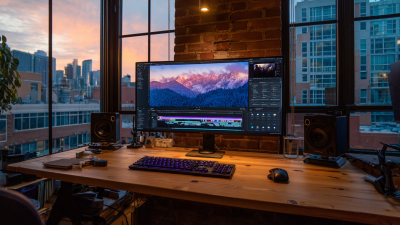
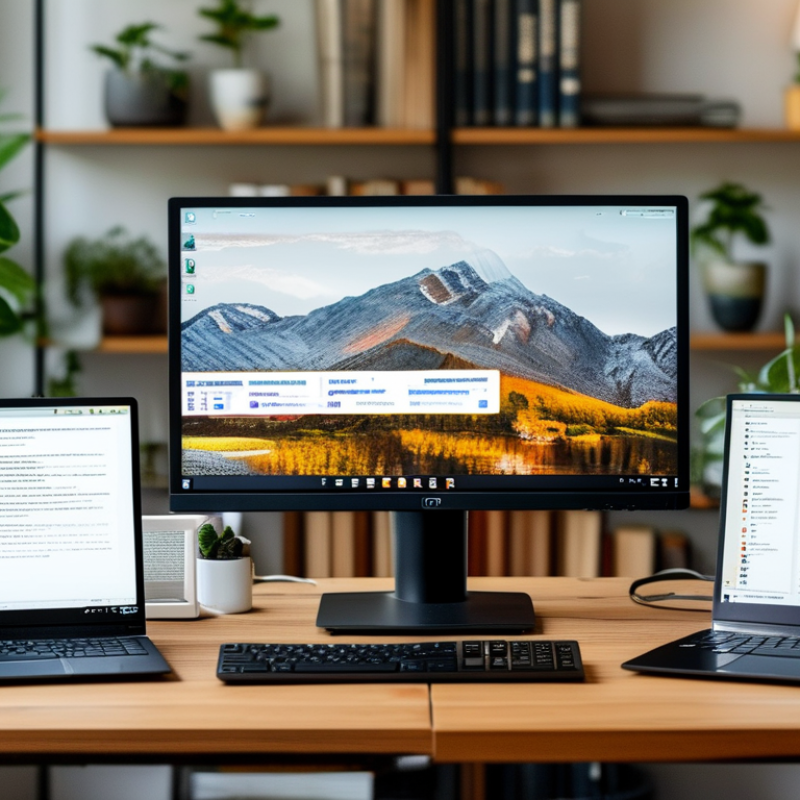
Utilizing a multi-monitor setup can significantly enhance your remote work experience. Imagine having one screen dedicated to video calls and the other for research. This setup allows for efficient multitasking, reducing the time spent switching between applications. You can take notes while attending meetings, making your workflow smoother.
Many remote workers underestimate the power of multiple screens. However, there's a learning curve when integrating them into your daily tasks. You may find yourself overwhelmed by the new layout or distracted by too many visuals. It's crucial to arrange your monitors ergonomically. Placing them at eye level reduces strain and keeps you focused.
Experiment with various configurations to discover what works best for you. Try using different orientations, such as vertical for documents or horizontal for spreadsheets. While some may feel that having too many screens is cluttered, it can lead to a more organized digital workspace once you find your rhythm. Embrace the process, and allow yourself to adapt gradually.